INSTALLATION
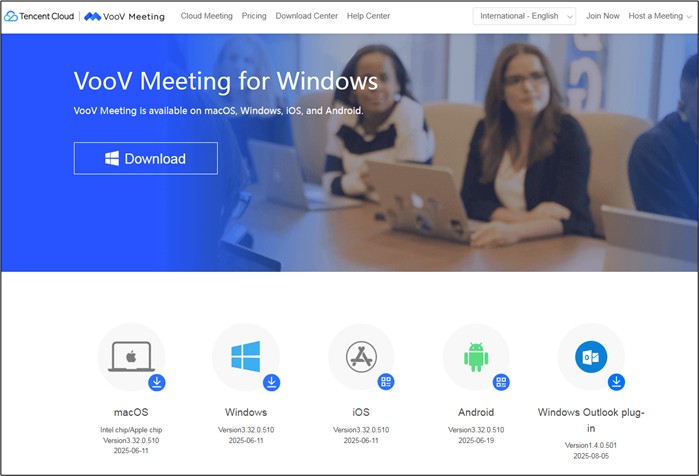
Go to the Download Center on the official “VooV Meeting” website (https://voovmeeting.com/download-center.html), and click “Download.”
Scroll down to find options for MacOS, iOS, Windows, or Android.

ACCOUNT SET-UP
Before joining an online meeting, you must log in to “VooV Meeting.” If you do not have an account yet, you can sign up for free.
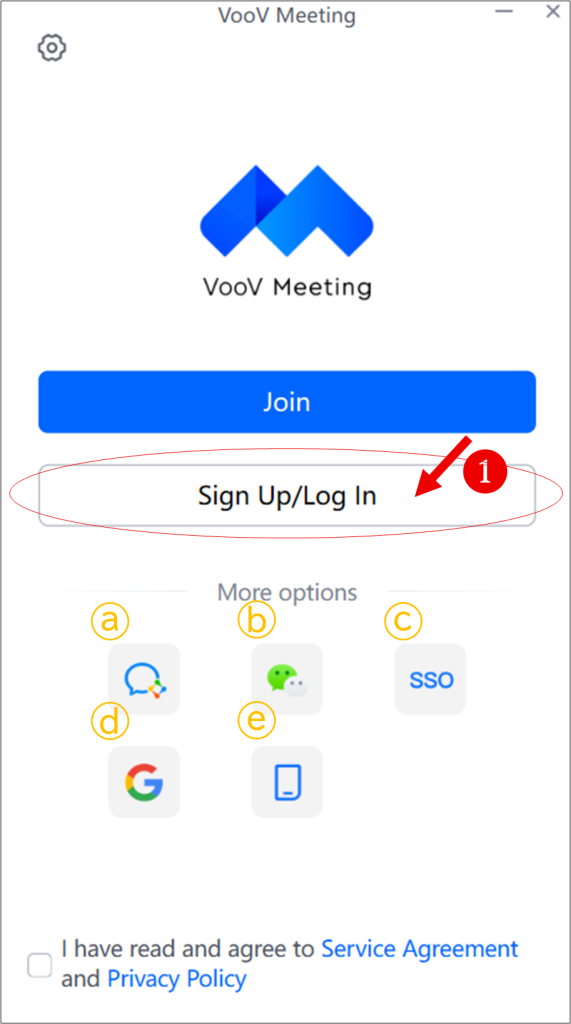
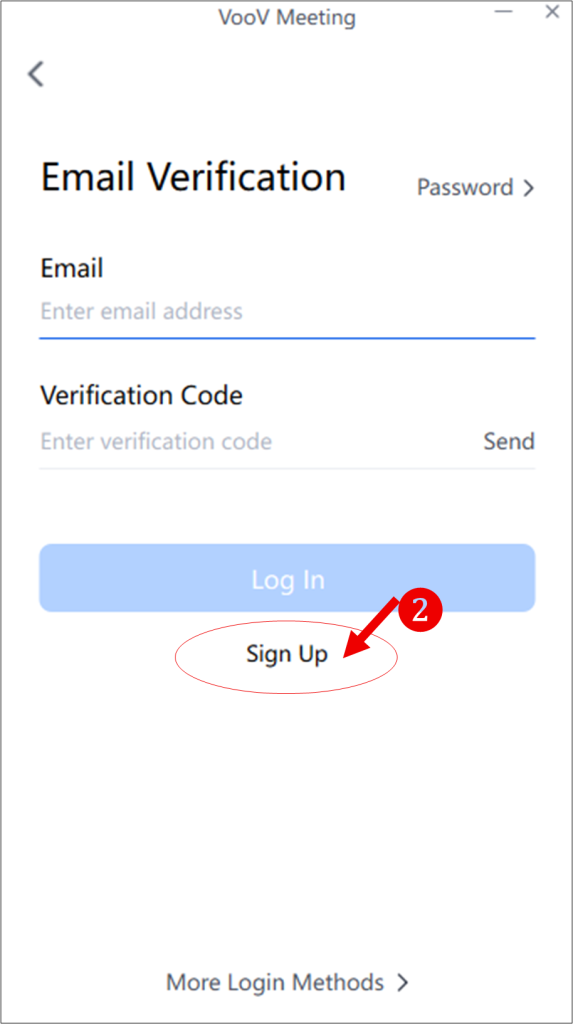
Run the application, click ❶ “Sign Up/Log In,” and click “Agree” to the Service Agreement and Privacy Policy to continue. The service will then direct first-time users to bind their email address to complete account registration.
You have the option to sign up or log in via
a) WeCom, b) WeChat, c) Enterprise Email, d) Google account or d) mobile phone number.
These options can be found under “More Options.”
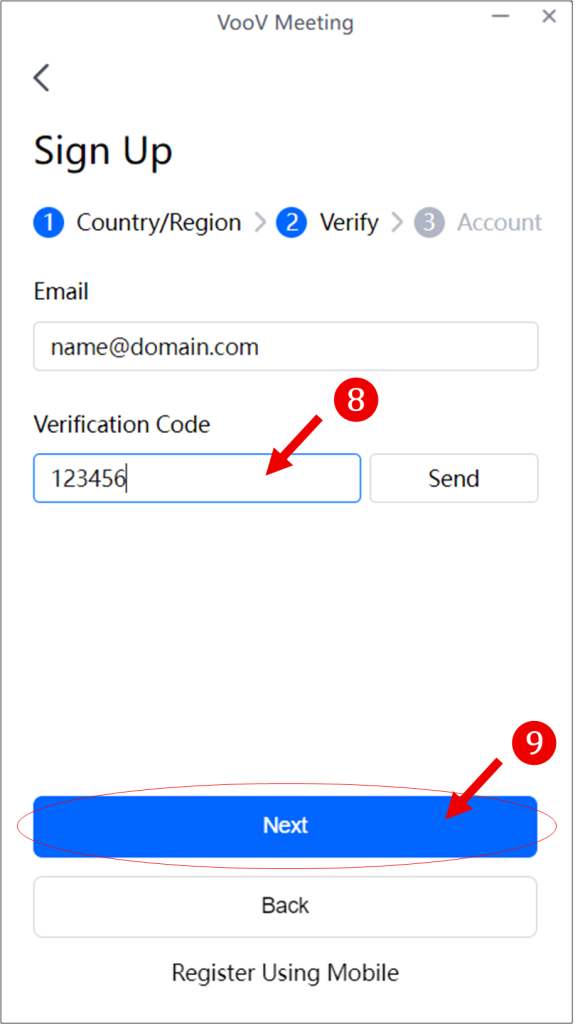
To start the registration process for a “VooV Meeting” account, please click ❷ “Sign Up.”
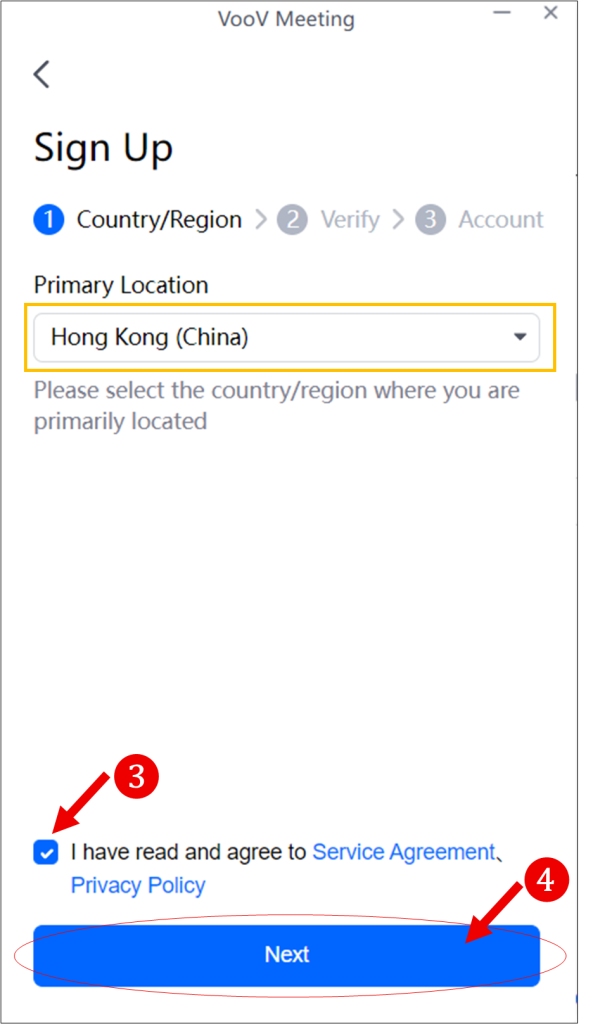
During the first step, if the “Primary Location” is incorrect, please manually select your country or region.
Remember to tick ❸ the box labelled “I have read and agree to the Service Agreement & Privacy Policy” before clicking ❹ “Next.”
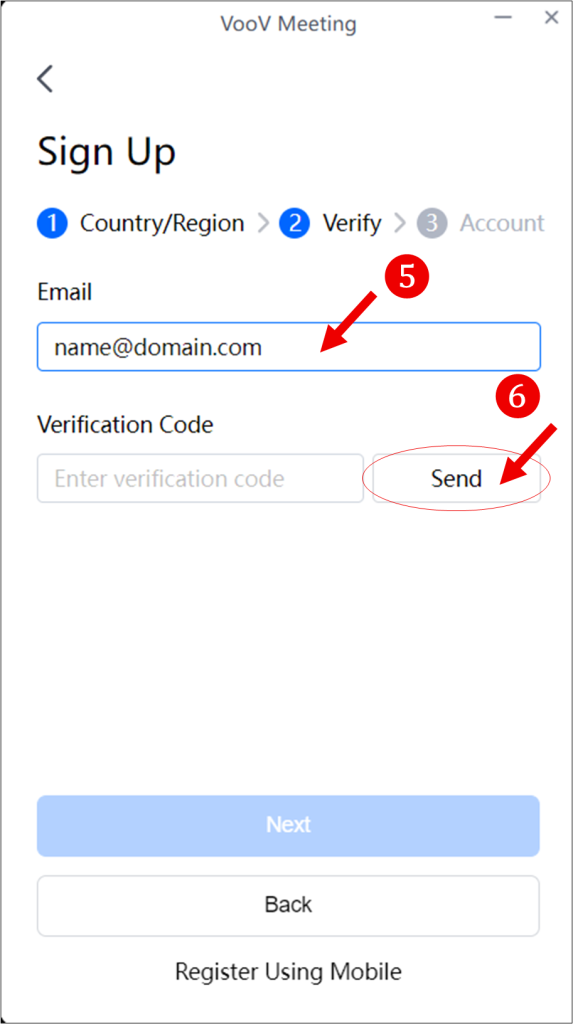
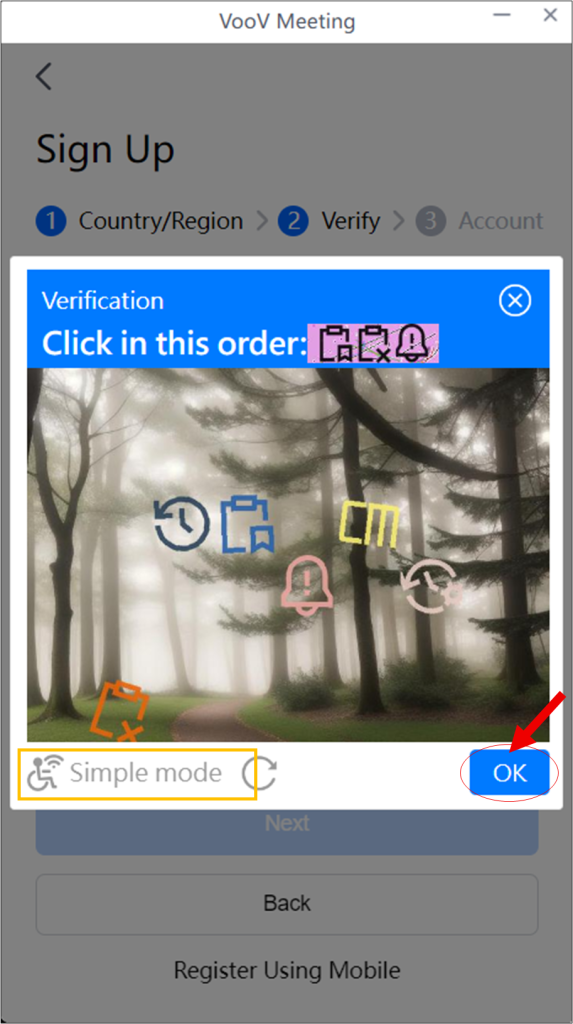
Enter your email address on box ❺ and click ❻ “Send.” You will then be guided through the CAPTCHA verification process. Click ❼ “OK.”
If you have any trouble with the verification process, you can switch to “Simple Mode”.
You will soon receive a six-digit verification code at the email address you provided. (If you cannot find it in your inbox, please check your junk mail folder. Enter this code into the ❽ “Verification Code” field, then click ❾ “Next.”
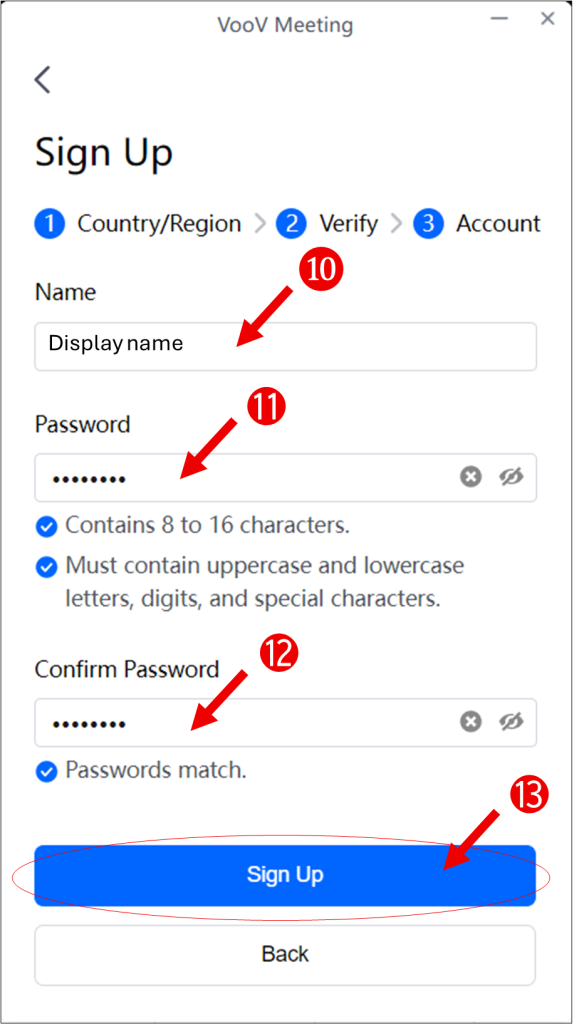
Enter your name in the ❿ “Name” field. This will be your display name and can be changed at any time.
Enter your chosen password in the ⓫ “Password” and ⓬ “Confirm Password” fields, then click ⓭ “Sign Up” to finish registering.